How to Read, Annotate and Sync Papers with Zotero on iPad
Keep the reference, the actual PDF and your reading notes connected—and export the right copy for someone else.
The short answer
Save a paper into Zotero, open its stored attachment, annotate it and verify the destination you need. A visible reference record is not proof that its PDF has downloaded; sharing a file and syncing Zotero annotations are separate workflows.
Start with one paper you can identify
Use a paper you can legally access and verify its title, author, date and DOI against the publisher. For a literature review, a wrong reference is more costly than an untidy filename. Keep one known paper as your setup check before importing an entire course.
Save the reference and confirm the attachment
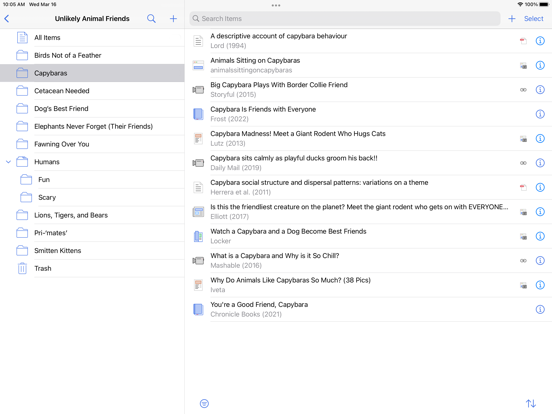
Zotero for iOS supports saving through the share control and reading PDFs with highlights, notes and ink. Open the saved reference and then the PDF attachment; a library row alone is not a completed download.
Annotate for a decision you will make later
Use three annotation purposes: evidence you might quote, a question to revisit and a limitation in the paper. A short comment explaining why a passage matters will be more useful during writing than highlighting entire pages.
For example, mark the main result, add a note about the sample and circle a figure whose axes need another look. Keep a reference to the page so you can return to the original context. This is an editorial reading method, not a required Zotero color scheme.
Sync the record and the file separately
Zotero distinguishes data sync from attachment-file sync. The former covers library records and notes; the latter uses Zotero Storage or an appropriate WebDAV setup. Personal and group libraries do not have identical file-storage options.
Open the same reference on the second device and then open its attachment. A matching title without an opening PDF is a file problem, not proof that your whole library failed.
Sharing an annotated PDF is an export task
Zotero stores its own annotations in its database and can export a PDF with embedded annotations. Sending an unexported attachment copy may not give another viewer the same reading notes. Keep the library version for continued research and a clearly named annotated export for sharing.
On desktop, Zotero’s reader can turn annotations into notes linked to PDF pages and citations. Do not look for every desktop note command in the iPad interface.
Before a flight, check the actual paper
Open each essential attachment while online, then reopen it without a connection. Confirm the latest notes and the PDF itself. Keep an additional exported reference copy if a failed sync would interrupt your work.
If a reference is present but a file is missing, begin at the device that still opens it. Do not delete the working attachment or reset the whole library merely to force a refresh.
- Reference: title and identifier match.
- PDF: opens on the device you will carry.
- Notes: latest meaningful annotation is present.
- Sharing: exported copy opens in the recipient’s viewer.
Limitations & considerations
- Menu names and availability depend on the installed system or app version; the linked documentation is the reference for current controls.
Use the linked official pages for current platform, access and purchase conditions.
Sources & scope
Reviewed October 25, 2026. Provider facts are attributed in each section. Examples, decision rules and quality checks are iApp4Me editorial guidance. Screenshots are credited provider illustrations unless a separate observation is explicitly identified.
- Zotero for iOS
Official documentation; feature and version scope checked October 25, 2026.
- Zotero: data and file syncing
Official documentation; feature and version scope checked October 25, 2026.
- Zotero: where annotations are stored
Official documentation; feature and version scope checked October 25, 2026.
- Zotero: PDF reader and notes
Official documentation; feature and version scope checked October 25, 2026.
No comments yet. Be the first to share your experience.