How to Reduce PDF File Size in Preview on Mac
A practical export workflow, a readable-file checklist and a recovery route when compression makes a PDF worse.
The short answer
Export a separate PDF with Preview’s Reduce File Size filter, then compare the saved file with the original. Keep the smaller copy only if the text, diagrams and required fields remain usable.
Start with the upload requirement
Write down the maximum accepted size and whether the recipient allows several files. A 4 MB document does not need a destructive reduction to 1 MB if the portal accepts 10 MB. Leave some headroom when the portal and Finder display different units.
Keep the original in a separate folder and give the working copy a name such as application-upload.pdf. Compare candidates against the original, not against the last degraded export.
Export a new candidate
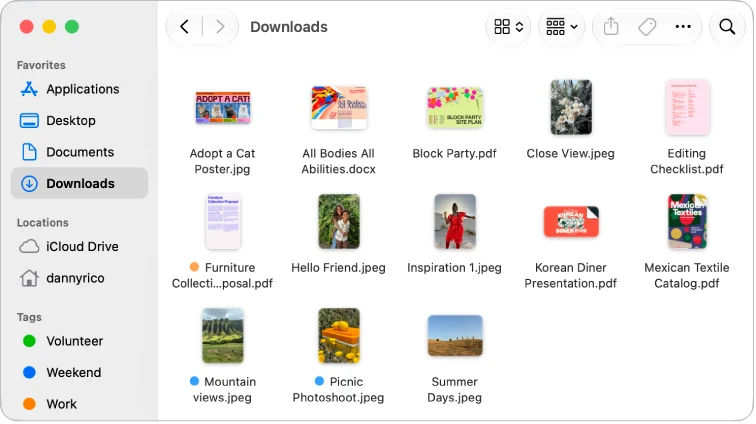
Open the PDF, choose File > Export, keep PDF as the output format and select Reduce File Size from Quartz Filter. Save with a different filename. Apple also documents image optimization controls; use the version selector if your dialog differs.
Choose by the content, not just the file extension
A born-digital report, a scanned receipt and a portfolio of photographs should not have the same acceptance rule. For a report, inspect small text and charts. For a receipt, inspect totals and faded print. For a portfolio, decide how much detail the recipient actually needs.
Export once from the original with one settings combination. If the saved candidate does not meet your needs, change the approach instead of repeatedly processing the same lossy copy.
- Text-heavy: keep text selectable where it was selectable before.
- Image-heavy: check fine edges and representative dark and bright areas.
- Forms: reopen filled fields and signatures before uploading.
3. Our small sample became larger
On October 24, 2026, we used Preview 11.0 on macOS 27.0.1 to export our existing four-page synthetic fixture with the Reduce File Size filter. The other image options were left unchecked. The source was 52,638 bytes; the saved output was 187,080 bytes, an increase of 255.4%.
Both PDFs had four pages and the checked known phrase remained extractable. We also rendered and inspected the first output page. This checks one workflow and one sample, not every page’s visual fidelity or the cause of the size increase. It is not a comparative compression benchmark.
Check size, readability and document behavior
Close the exported copy and reopen it from Finder. Inspect the page count, first and last page, a small-text page and a graphics-heavy page. Search for a known phrase if the original supported search. These are different checks: passing one does not establish the others.
For example, a 12 MB scan reduced to 4 MB may be useful for an email attachment but unsuitable for printing. A 700 KB report that grows after export should usually stay as the original. These are decision examples, not measured compression results.
Compress a PDF in Preview — Then Check the Quality
- Export a separate copy, so you keep the original.
- Choose PDF and the Reduce File Size Quartz filter, then save.
- This test file went from four point three megabytes to about three hundred fifty eight kilobytes.
- Open the exported PDF. Zoom in on small text, fine lines and image edges.
- Smaller is only useful if the detail you need survives. Check before sharing.
Recorded in macOS Preview using synthetic PDFs. English narration and captions accompany the Chinese interface. File sizes describe this sample only. Recorded by iApp4Me on October 25, 2026.
Watch on YouTube ↗If it is blurry, bigger or still too large
A blurry export is a failed candidate when the missing detail matters. A larger export is not an improvement merely because the filter name says Reduce File Size. Keep the original; consider obtaining a better source scan, splitting only when accepted, or choosing a compressor with more specific controls.
Preview does not promise an exact target byte count. When the portal requires one strict-size file and the document cannot lose readability, compare dedicated PDF tools rather than promising that a preset will solve every document.
Limitations & considerations
- Menu names and availability depend on the installed system or app version; the linked documentation is the reference for current controls.
Use the linked official pages for current platform, access and purchase conditions.
Sources & scope
Reviewed October 25, 2026. Provider facts are attributed in each section. Examples, decision rules and quality checks are iApp4Me editorial guidance. Screenshots are credited provider illustrations unless a separate observation is explicitly identified.
- Apple: reduce PDF size
Official documentation; feature and version scope checked October 25, 2026.
- Apple: export PDFs and images
Official documentation; feature and version scope checked October 25, 2026.
No comments yet. Be the first to share your experience.