How to Turn a Photo into an AI Video
Turn a still image into a short moving shot while keeping the subject, camera and export requirements under control.
The short answer
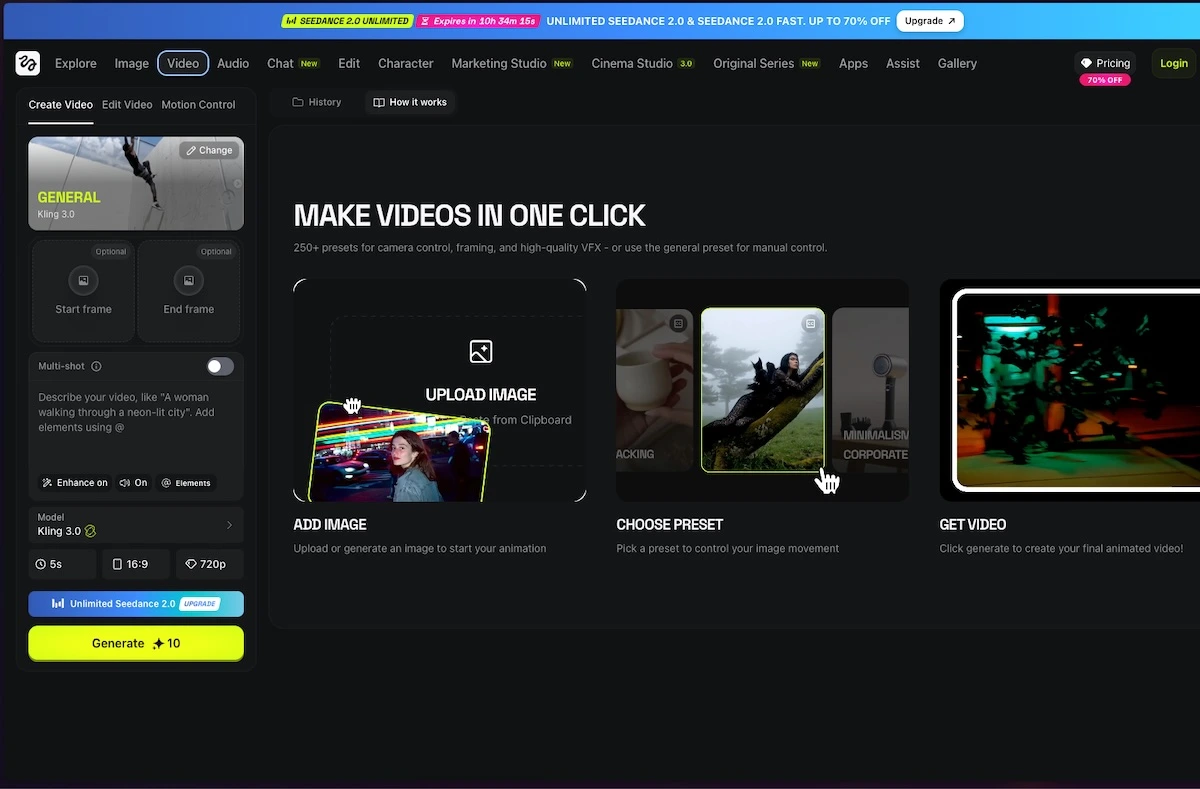
Use an image-to-video workflow, upload a clean reference, describe one subject movement and one camera movement, then generate a short clip. Inspect the result for changed faces, hands, text and product details before adding it to an edit. Start with modest motion when consistency matters.
Side by side
| Your situation | Useful route | Check before choosing |
|---|---|---|
| Face or product must stay consistent | Use a clear reference and modest motion | Inspect throughout the clip |
| Too much distortion | Reduce the requested movement | Change one instruction at a time |
| Exact wording required | Add text after generation | Do not trust generated lettering |
Prepare an image that already contains the important details
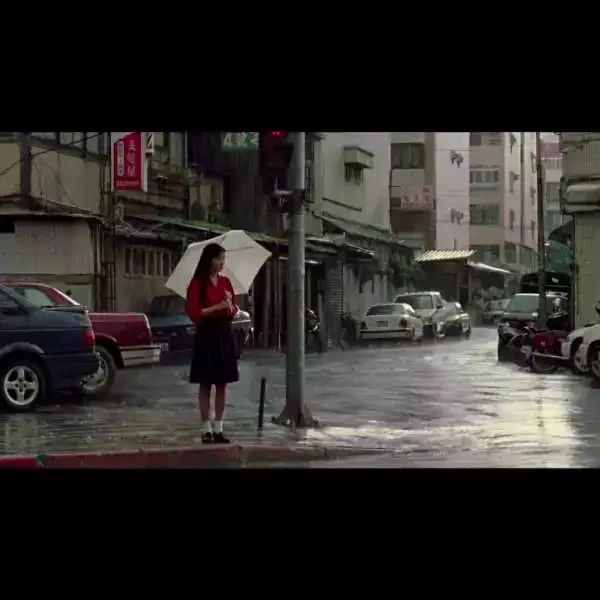
Choose a sharp source with an uncluttered subject and enough space around it for the intended movement. A cropped hand or a cut-off product corner gives the generator less reliable information to work with. Keep an untouched original so you can return to it if a variation changes something essential.
Decide the destination first. A vertical story and a landscape presentation need different framing. If you expect a gentle push-in, leave room at the edges. Avoid asking the tool to invent a large unseen part of a product when the real shape matters.
Choose the appropriate image-to-video route
Higgsfield provides video and creative-effect workflows, while Swagga.ai highlights motion control and cinematic portraits from existing images. Start from the workflow that accepts your source rather than trying to force an unrelated text-only generation into the job.
Use the official product entry point and check the selected model’s inputs, dimensions and generation cost. In a browser on a phone, make sure the original image has finished uploading before continuing. A low-resolution preview or an accidental screenshot may not be the reference you intended.
Describe movement instead of rewriting the whole image
For a portrait, use a single change: “The subject turns slightly toward camera; slow push-in; steady lighting; no cut.” For a product, use “slow camera push-in; product stays stationary; keep the visible label and shape unchanged.” These are editorial prompt examples, not guaranteed model constraints.
Do not combine a locked camera, orbit and zoom in the same first request. If the tool supports a start-frame image, use the original reference; if it requires a motion-reference video, prepare that input instead. A text description cannot replace an input the selected workflow requires.
Inspect the entire clip, not just the thumbnail
Play the clip at normal speed and pause at the beginning, middle and end. Look for identity drift, changing fingers, moving logos, invented objects and flickering edges. A strong first frame does not establish that the rest of the clip remains usable.
If the problem appears only during a large movement, reduce the movement before adding more prompt detail. If an essential element repeatedly changes, keep that element static in the final edit or choose another source. The goal is a credible short shot, not the largest possible transformation.
Image source and original context
Fix the defect you can name
If the background moves but the subject should be still, simplify the camera/subject instruction. If a face or logo morphs during a turn, reduce the turn or choose a source with the needed view. If the crop loses a hand at the edge, change the framing before generating again.
Keep the selected source, prompt and downloaded clip together. Add exact titles in the finishing editor, then check the file at the destination aspect ratio. A good thumbnail is not evidence that all frames are usable.
Limitations & considerations
- Check current access and purchase terms for your country and account before paying.
Use the linked official pages for current platform, access and purchase conditions.
Sources & scope
Reviewed October 24, 2026. Product facts follow the linked provider documentation. Selection advice and example prompts are iApp4Me editorial guidance. Screenshots and provider examples are credited beside each image. Availability and plan terms are dated October 24, 2026.
- Higgsfield: creator tools
Official catalog of creative workflows.
- Swagga.ai: photo and video studio
Official product identity and creative workflow descriptions.
- Higgsfield: official platforms
Official browser platform, account requirements and mobile-app clarification.
- Higgsfield: free-account and paid-plan watermark rules
Free accounts add a visible watermark; paid plans apply to new generations, not retroactive removal.
No comments yet. Be the first to share your experience.