How to Create Product Videos with AI from Existing Photos
Build a short product story from real photos, using AI for motion and a conventional edit for exact claims and branding.
The short answer
Start with accurate product photos and a three-shot storyboard: identify the product, show one useful detail and end with a clear next step. Generate short motion clips from those references, then add exact branding, text and audio in an editor. Inspect every shot for invented features or altered packaging.
Side by side
| Shot | Input and movement | Reject the take if |
|---|---|---|
| Opening | Approved front photo; restrained push-in | Brand or shape changes |
| Detail | Real close-up; small light or camera change | Material or label is invented |
| Closing | Real still plus text in a conventional editor | Price, spelling or CTA is wrong |
Write a three-shot story
Build a three-shot plan for a real notebook: shot 1 shows the cover, shot 2 shows the binding in a supplied close-up, and shot 3 is an end card with the actual product name and next step. Use short separate clips so an error in one shot does not require regenerating the entire advertisement.
For each shot, record the source photo, visible product detail and permitted motion. A slow push-in on the front view can use one source; a rotation revealing the back requires a real back view or a different plan. AI cannot verify an unseen product feature.
Prepare a reference pack before generating
For one product, collect a clean front view, a side view and a detail view using images you have permission to use. Choose the actual variant you sell: cap, color, dimensions and label should agree across the references. Separate the product from decorative props.
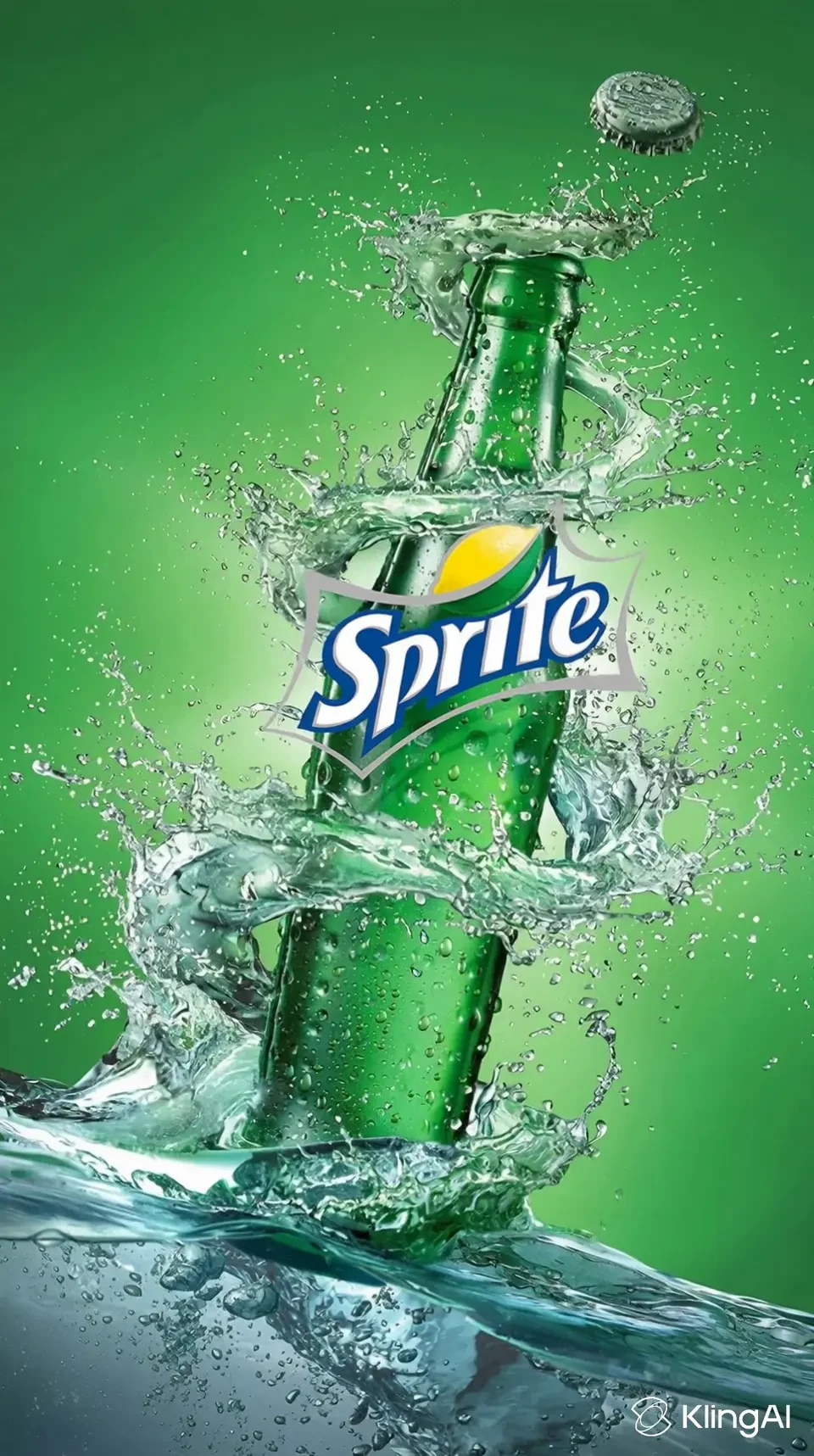
Example brief for a bottle: a three-second opening hero, a four-second close-up and a three-second closing card. Treat those as your editorial target, not a promise that a generator offers those exact duration settings. Pick a supported clip length and trim the accepted material afterward.
- Keep one approved product photograph as the truth reference.
- Put required wording, price and disclaimers in a separate text file.
- Define destination aspect ratio before arranging the final edit.
Prepare references that support truthful motion
Use real photos with consistent color and visible edges. Supply the back or side view when that part will appear; a generator cannot establish an unseen connector, label or material from the front view alone. Keep a reference sheet of details that must not change.
Separate the photographed product from the surrounding scene. AI-generated backgrounds can add atmosphere, but they should not imply a real setting or product capability that you cannot support. For an early concept, label it as a concept when the finished visual could otherwise mislead.
Choose a product-oriented workflow
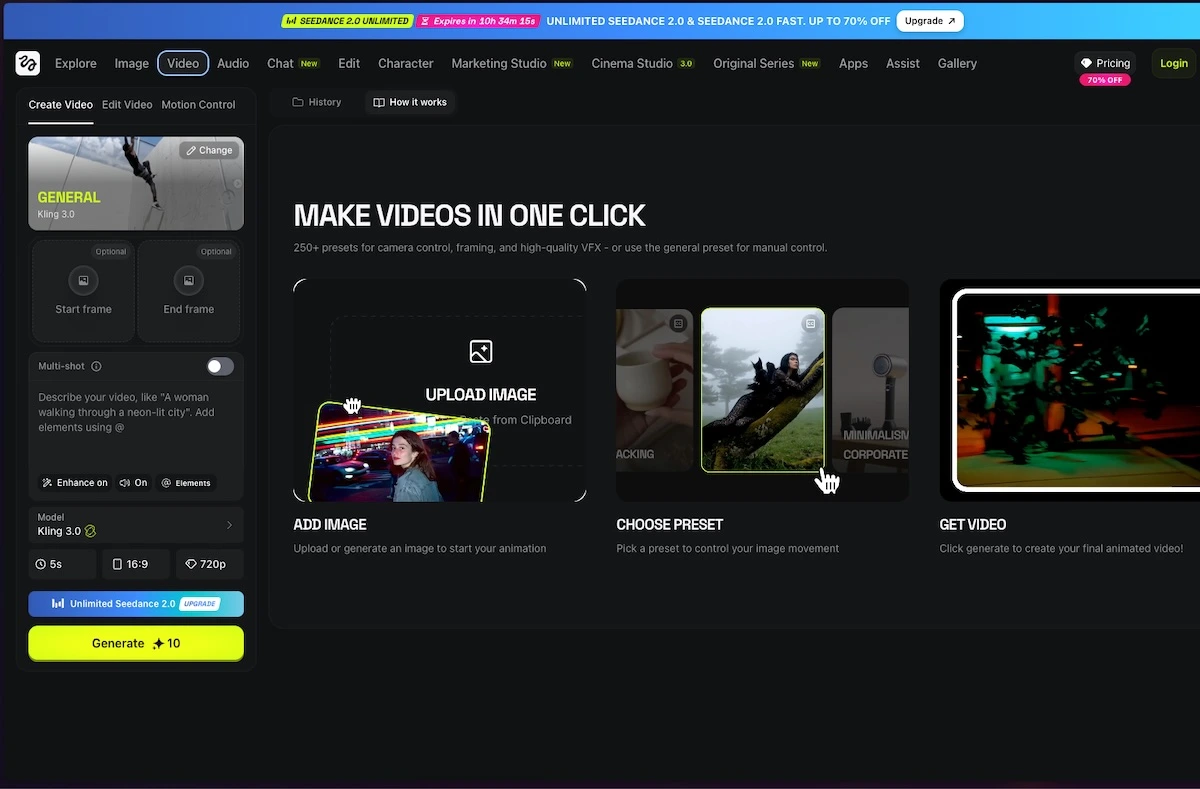
Higgsfield’s official catalog includes advertising and product effects, and Swagga.ai highlights a product-reveal workflow. These are relevant starting points for motion from existing product imagery. Check which inputs the current tool accepts before preparing a large batch.
Generate one short shot first. Keep the intended camera move clear and avoid requests that expose an unphotographed part of the item. If the output changes the product’s proportions or logo, reject that shot rather than trying to hide the error behind a faster edit.
Swagga.ai: photo and video studio
Image source and original context
Finish exact details outside the generator
Place the real logo, product name, price and call to action in a conventional editor. That keeps spelling, alignment and later revisions manageable. Use a clean end card with enough time to read it on a phone, and avoid putting essential wording behind platform controls.
Match the product color across the shots before adding a strong grade. A beautiful background is less useful if the item no longer resembles the product being sold. Add captions or a short explanation only when they clarify the benefit, rather than filling every second with text.
Use a product-accuracy rejection list
Reject a shot if the label wording, package dimensions, color, connectors or included accessories change. Compare the beginning, middle and end with the real source photos. A fast transition should not be used to conceal a product error.
Keep the final price, logo and call to action as editable overlays. Confirm the selected service/model’s commercial terms and save the full-resolution master before uploading. If accurate product geometry cannot survive the generation, animate the background around the real still instead.
Troubleshoot by changing one moving part
If the label mutates, reduce camera motion and keep readable wording in a normal title overlay. If the silhouette changes, use a simpler shot or keep the real product still while animating the background. If a new angle reveals invented features, reject the angle rather than describing the artifact as a product capability.
When the generated clip repeatedly fails the truth check, use a pan or zoom over the original photo in an ordinary editor. Motion is optional; a faithful product and legible offer are not.
Limitations & considerations
- Check current access and purchase terms for your country and account before paying.
Use the linked official pages for current platform, access and purchase conditions.
Sources & scope
Reviewed October 25, 2026. Product facts follow the linked provider documentation. Selection advice and example prompts are iApp4Me editorial guidance. Screenshots and provider examples are credited beside each image. Availability and plan terms are dated October 24, 2026.
- Higgsfield: creator tools
Official catalog of creative workflows.
- Swagga.ai: photo and video studio
Official product identity and creative workflow descriptions.
- Higgsfield: pricing
Live plan entry point; account offers and model access can vary.
- Swagga.ai: pricing
Official pricing entry point; public extraction did not expose a full entitlement table.
- Higgsfield: free-account and paid-plan watermark rules
Free accounts add a visible watermark; paid plans apply to new generations, not retroactive removal.
- Higgsfield: Marketing Studio
Official documentation; feature and version scope checked October 25, 2026.
- Swagga: product and creative workflows
Official documentation; feature and version scope checked October 25, 2026.
- Image source and original context
Source for the adjacent section or credited illustration.
No comments yet. Be the first to share your experience.